Slack- and Discord-style :emoji: autocomplete, everywhere on your Mac.
Comoji is a tiny menu bar app that adds colon emoji shortcuts to the text fields you already use, including Messages. Type :liz, pick 🦎, keep typing. Everything runs locally.
v1.1.11 · macOS 13 Ventura or later · Free · Signed & notarized
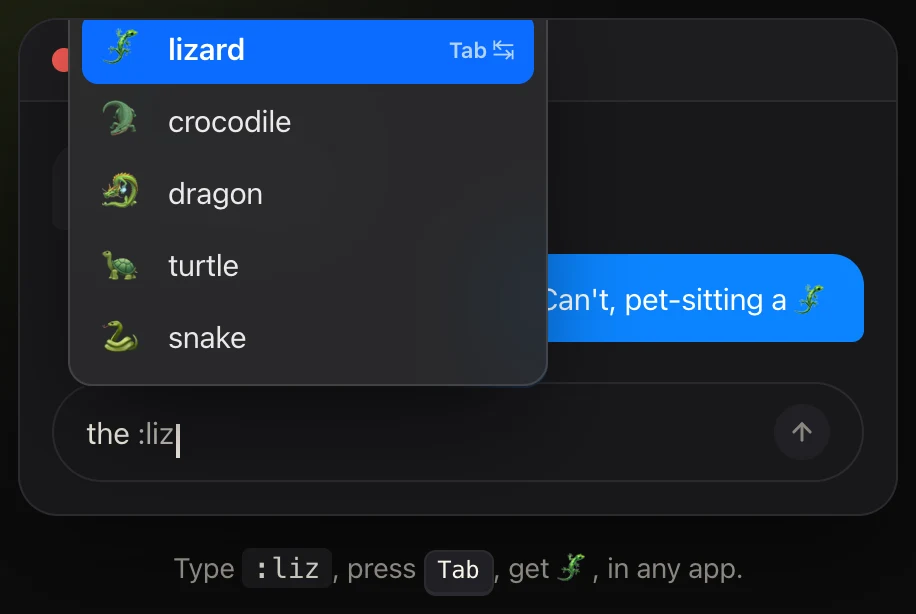
Type :liz, press Tab, get 🦎, in any app.
Works in the apps you already type in
…plus Mail, Notes, TextEdit and most other Mac apps.
Three keystrokes, no context switch
Apple’s Text Replacements solve one alias at a time. Comoji gives you live autocomplete for every emoji you know.
Type a colon token
Start any emoji shortcode with a colon, :whis, :sob, :+1, in whatever text field you’re already using.
Pick from the popover
A quiet floating panel appears by your caret with the best matches. Arrow keys move the selection; recent picks rank higher.
Press Tab to insert
Comoji deletes the token and drops in the emoji. Or type the closing colon, :whiskey:, to replace an exact match instantly.
Small app. Power-user details.
1,870 emoji, Slack & Discord aliases
The full emoji set with Slack- and Discord-style alias names, :thumbsup, :joy, :skull, :tada, so the shortcuts you already know just work.
Fast, keyboard-first
Arrow to navigate, Tab or Return to accept, Esc to dismiss. No mouse, no picker, no breaking your flow.
Type :: to browse all
Forgot the alias? Press your trigger twice to open a big, searchable emoji browser, then arrow over and hit Return.
Stickers wherever you type
Type /sticker in Messages, WhatsApp, Mail, browsers, and most other Mac apps to search animated stickers and paste one in place. Popular ones ship in; the rest stream from Google’s Noto set.
GIFs wherever you type
Type /gif in Messages, WhatsApp, Mail, browsers, and most other Mac apps to search animated GIFs powered by GIPHY and paste one in place.
Pick your trigger key
Prefer / or ; over :? Choose the key that opens a token in Preferences. Suggestions, examples and the browser all follow it.
Looks like macOS, not like us
The suggestion popup uses standard system materials and follows Light/Dark automatically. Pick the highlight color in Preferences › Appearance: Comoji lime, your Mac’s own accent color, six presets, or any custom color.
Disable in any app
Password managers, terminals and VMs are ignored by default. Turn Comoji off in any other app from Preferences › Privacy.
Disable on any website
Add a domain like github.com and Comoji stands down on that site in your browser, subdomains included.
Skin tones, remembered
Pick a Fitzpatrick tone for 👋 👍 🙏 and Comoji saves it as your default. Tone choice persists; ranking stays per emoji.
Learns your favorites
Recent-use ranking floats the emoji you actually send to the top of the list, locally on your Mac.
Exact-match auto-replace
Type a full :shortcode: and the closing colon swaps it instantly. Prefixes never auto-fire, so there are no surprises.
Updates itself, quietly
Comoji downloads new versions in the background and installs them while you’re away from the keyboard. Never an interrupting pop-up, never a restart mid-sentence. Every update is signed and verified before it installs. Turn it off anytime.
How does Comoji compare?
Your keystrokes never leave your Mac.
Comoji reads keystrokes locally for one reason: to spot a colon emoji shortcut. That’s it.
- No network calls in the core app
- Raw typed text is never logged
- Message contents are never uploaded
- Secure password fields are always ignored
- No account, no telemetry, no cloud
“I was so used to expressing myself through emojis and stickers in Slack that Messages started to feel like the Stone Age. Comoji solved that for me 👍 🎉 🍾”
“Been living in iMessage on my Mac and giving Comoji a try — Slack-style :emoji: autocomplete everywhere you type. Type :liz, hit Tab, get 🦎. Runs 100% locally too. Honestly such a great idea 🎉”
Questions, answered
Which apps does Comoji work in?
Messages is the flagship, but Comoji works in most native and web text fields, Mail, Notes, TextEdit, Safari, Chrome, Arc, Slack, Discord, Notion and more. It uses synthetic backspace + paste, so it doesn’t depend on each app exposing perfect text APIs.
Does Comoji send my keystrokes anywhere?
No. Comoji processes keystrokes locally only to detect emoji shortcuts. Message contents are never uploaded, raw typed text is never logged, and there are no network calls in the core app. The exceptions are the optional sticker and GIF features: stickers download artwork from Google’s emoji CDN the first time you use one, and GIFs send the word you search to GIPHY to fetch matching results. Both move only the search word and the artwork you pick, never any message or typed text. Secure password fields are always ignored.
Why does it need Accessibility and Input Monitoring permission?
Input Monitoring lets Comoji notice when you type a shortcut like :lizard, and Accessibility lets it read the active text field and insert the emoji. These are standard for Mac productivity utilities. Comoji explains both during a short onboarding and shows live grant status.
Can I turn Comoji off in certain apps or on certain websites?
Yes. In Preferences › Privacy you can add any app to a disabled list, and any website domain (like github.com, subdomains included) where Comoji should stand down in your browser. Password managers, terminals and VMs are excluded by default, and the menu bar shows when Comoji is disabled in the current app or site. Website detection works in Safari, Chrome, Edge, Arc, Brave and AI browsers like Comet and ChatGPT Atlas.
Can I change the : trigger key?
Yes. If the colon gets in your way, pick a different token-opening key, semicolon, slash, backslash, @, #, ~ or |, in Preferences › Shortcuts. Everything updates to match: the suggestion popover, the in-app examples, and the double-tap browser.
What if I can’t remember an emoji’s shortcode?
Type your trigger key twice, :: by default, to open a large, searchable emoji browser. Search or arrow through the full set, press Return to insert, and it drops the emoji right back into the field you were typing in.
Can I send stickers too?
Yes, in any supported text field, including Messages and WhatsApp. Type /sticker, then a search word, to bring up a big library of animated stickers, then arrow over and press Return to paste one where you were typing. A popular set ships with the app for offline use; the rest stream from Google’s open Noto emoji set the first time you use them, then cache locally.
Can I send GIFs?
Yes, in any supported text field, including Messages and WhatsApp. Type /gif, then a search word, to pull up matching GIFs from GIPHY, arrow over and press Return to paste one where you were typing. Results stream live from GIPHY and cache locally, and the picker shows GIPHY attribution. GIFs only fetch the artwork you pick — never any message or ordinary typed text.
Does Comoji update itself?
Yes, on its own. Comoji downloads new versions in the background and installs them while you’re away from the keyboard (no window open and a couple of minutes without typing), then relaunches in place. It won’t restart under you mid-sentence, and there’s no interrupting pop-up. Every update is Developer ID signed and cryptographically verified before it installs. In a hurry? The Update button in the menu bar installs it right away. Prefer to update by hand? Switch off “Keep Comoji up to date” in Preferences and check whenever you like.
Will it interfere with my normal typing?
It’s built to favor false negatives over false positives. The token buffer resets aggressively, on clicks, arrow keys, app switches and invalid characters, and Tab/Return are only intercepted while the popover is visible. If Comoji isn’t sure, it does nothing.
How do I install it?
Comoji is a direct download for macOS 13 Ventura or later. It’s Developer ID signed and notarized, download the DMG, drag it to Applications, and grant the two permissions on first launch.
How much does it cost?
Free. Comoji is a small, focused Mac utility, no account, no subscription, no cloud service.
Add :emoji: to your whole Mac.
Free, signed, and built to stay out of your way. Download Comoji and your first :liz is seconds away.
v1.1.11 · macOS 13 Ventura or later · Free